
How to Start Auto-Lending
Contents
Before You Begin
- Make sure the following are done
- Do you have a Bitfinex account and API key?
- Does your Bitfinex Funding Wallet hold funds to lend (more than 152 USD)?
- Do you still need to deposit funds into Bitfinex?
Setting Up Auto-Lending on FalconLend
1. Sign Up and Log In to FalconLend.ai
- Platform URL: FalconLend.ai
- You can sign in quickly with Google account verification
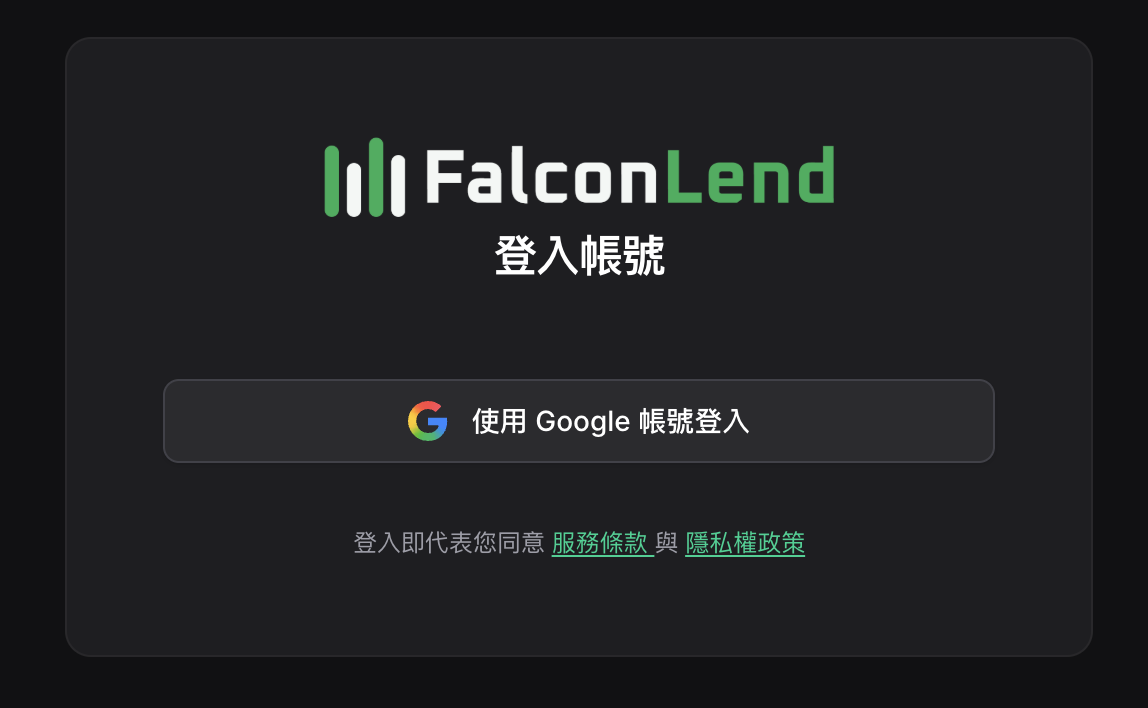
2. Choose the Free Trial Plan or Another Subscription Plan
Step 1: Choose the free plan
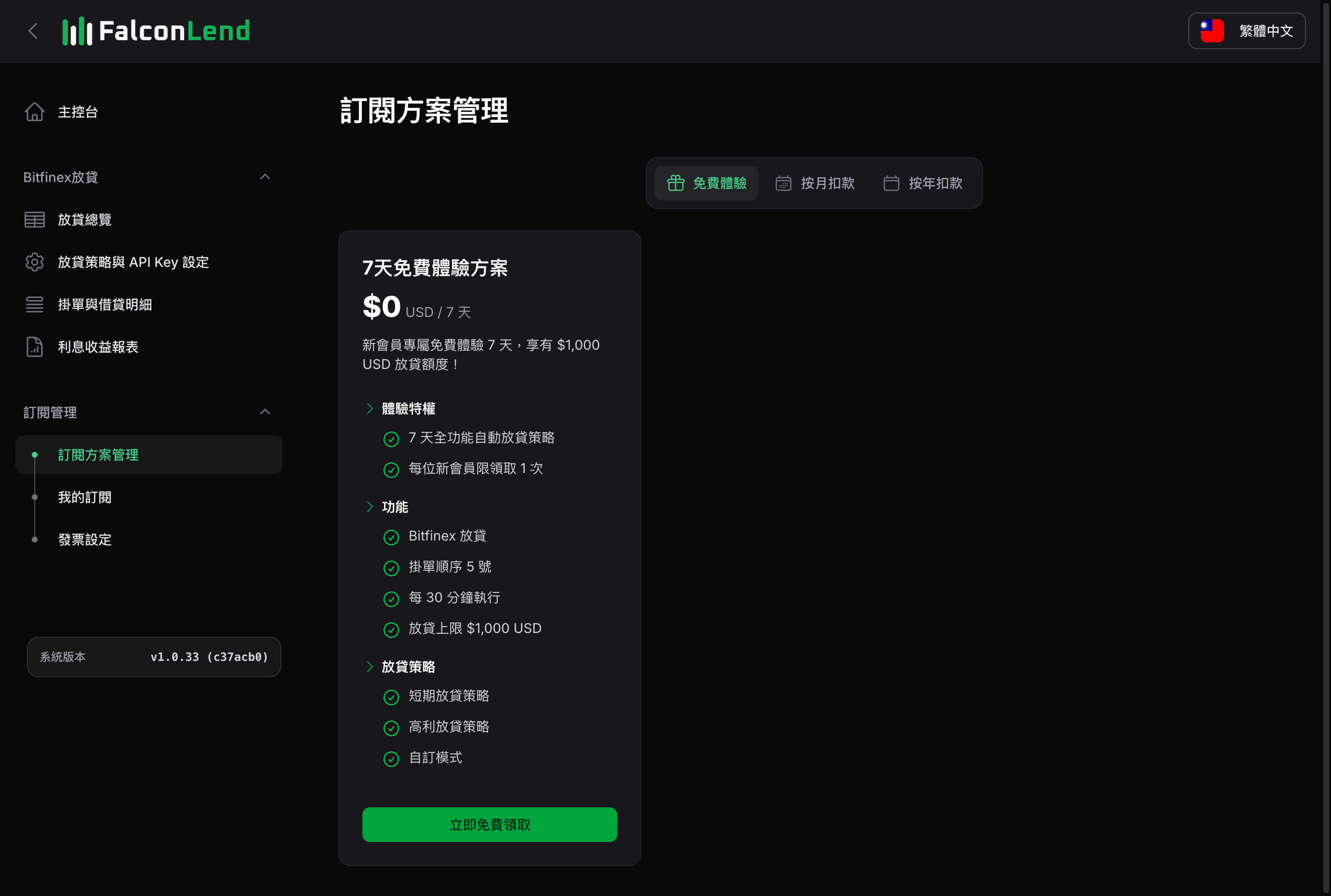
Step 2: Subscribe to the free plan
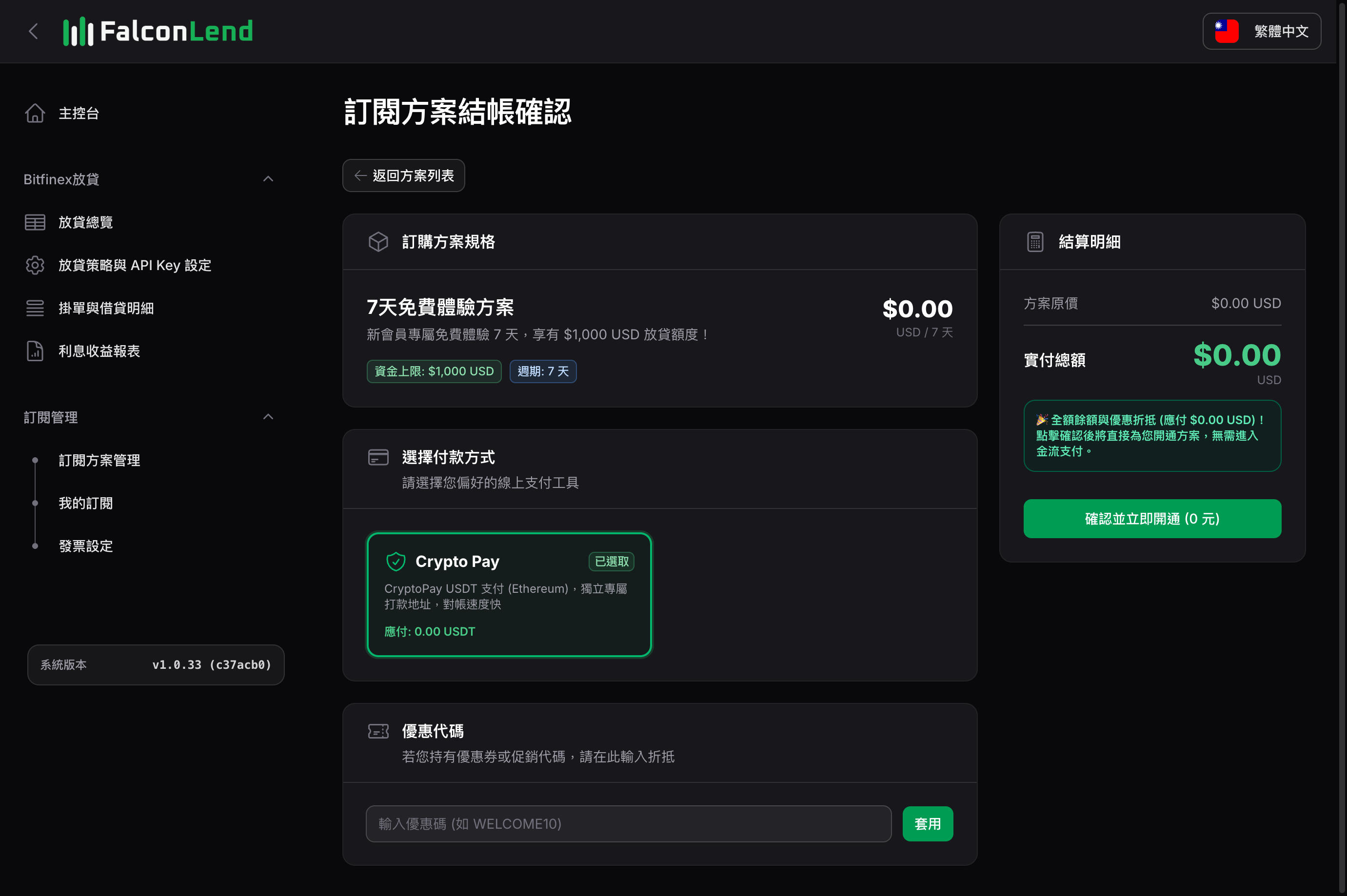
Step 3: Complete the free plan subscription
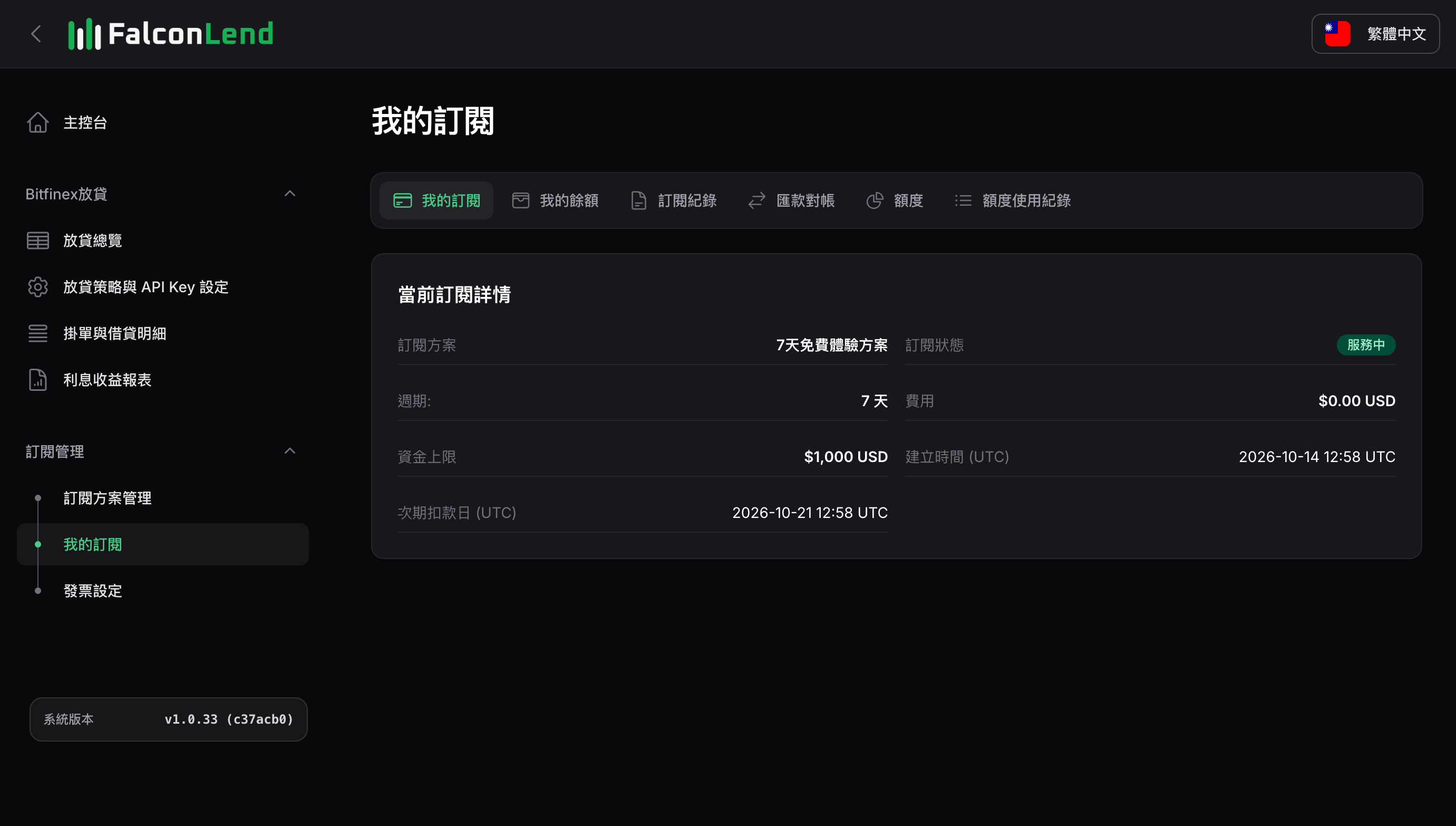
3. Set Up Your API Key
If you don’t have a Bitfinex API key yet, see Bitfinex Setup and Creating an API Key
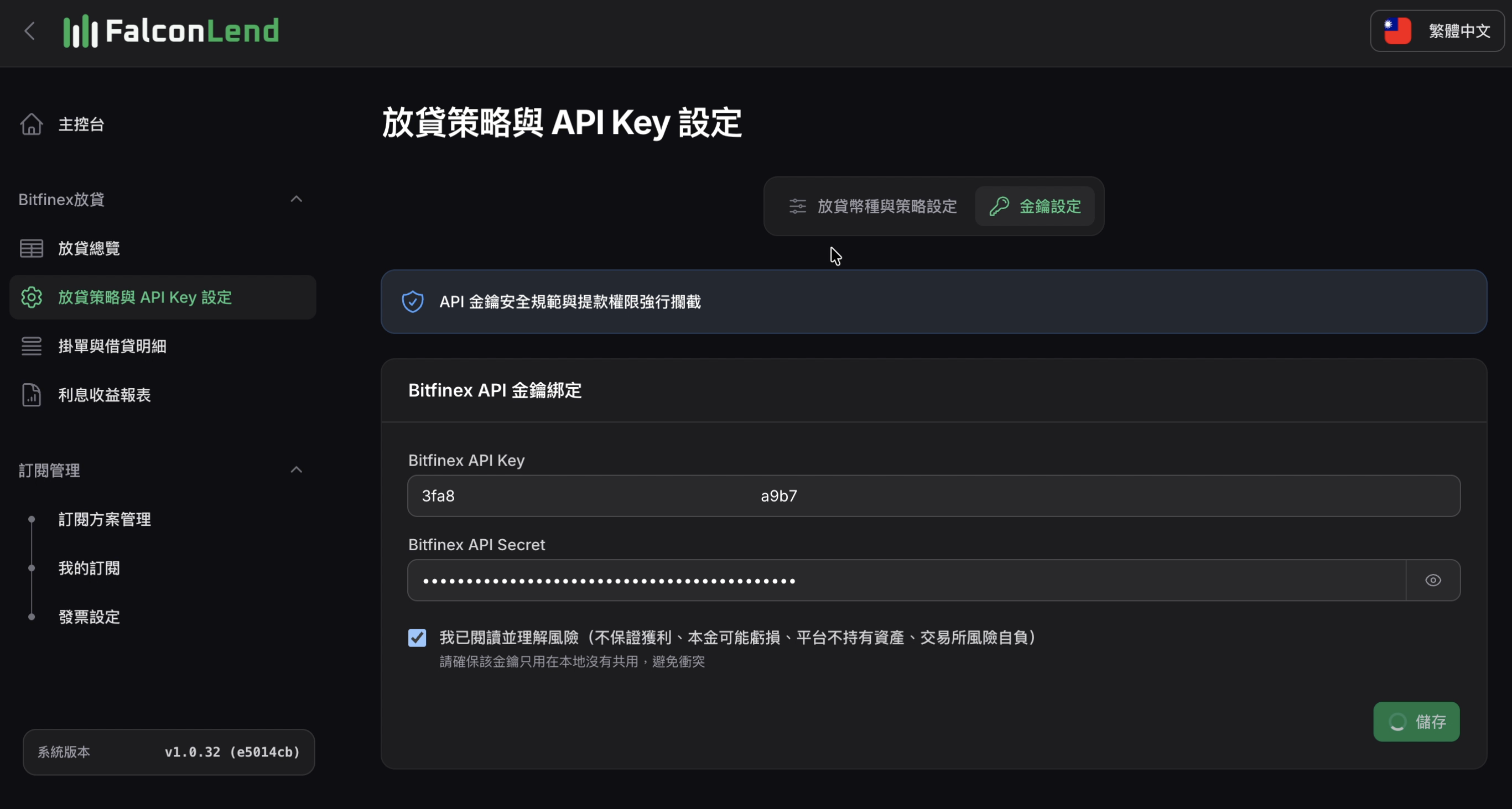
- Go to Strategy & API Settings >
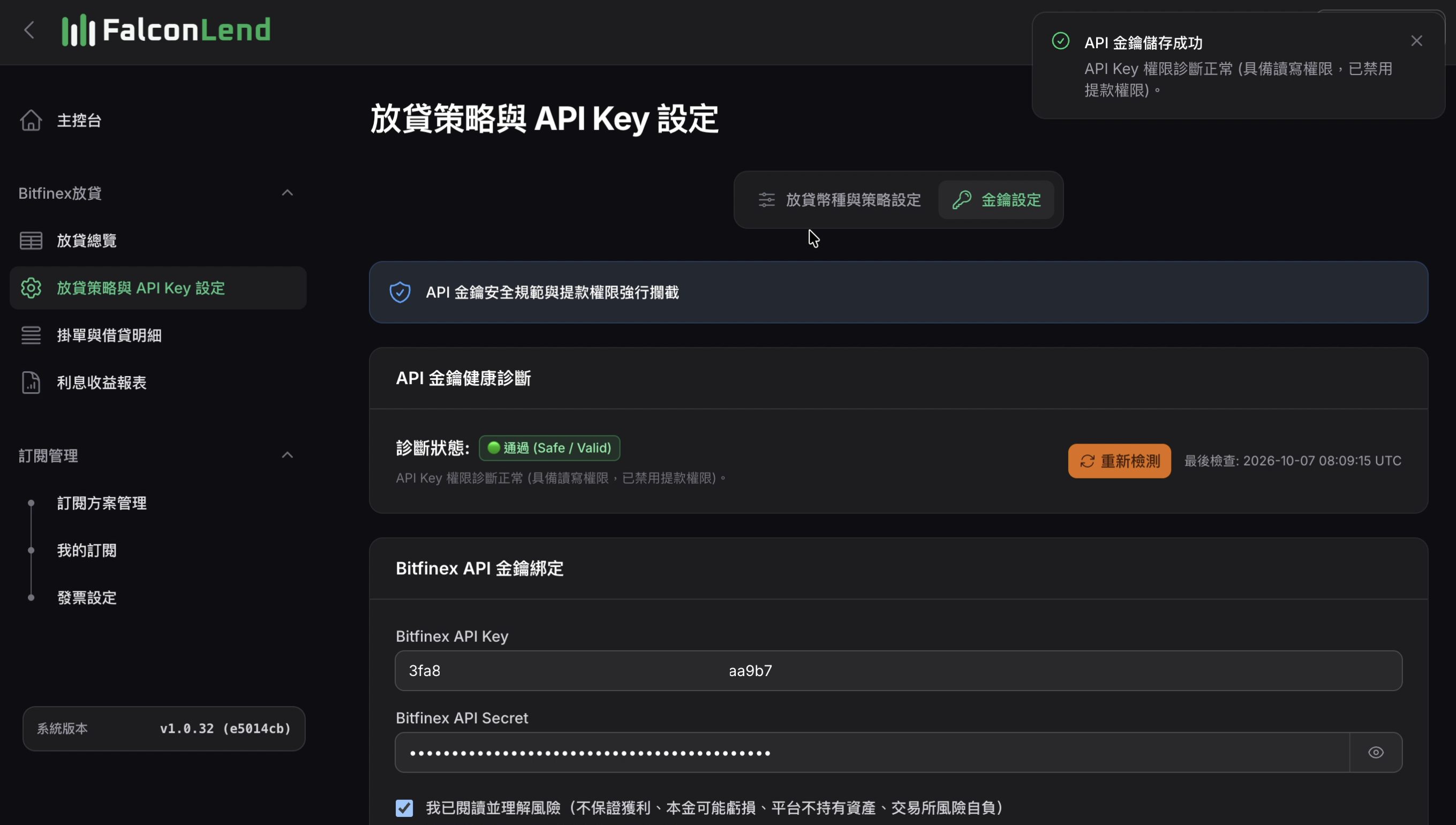
API Key Credentials, enter yourBitfinex API KeyandBitfinex API Secret, then clickSaveat the bottom right - When you
Save, the platform checks that the permissions are set correctly
When the permissions are correct, the key is saved successfully (and the API Key Health Check status shows Valid)
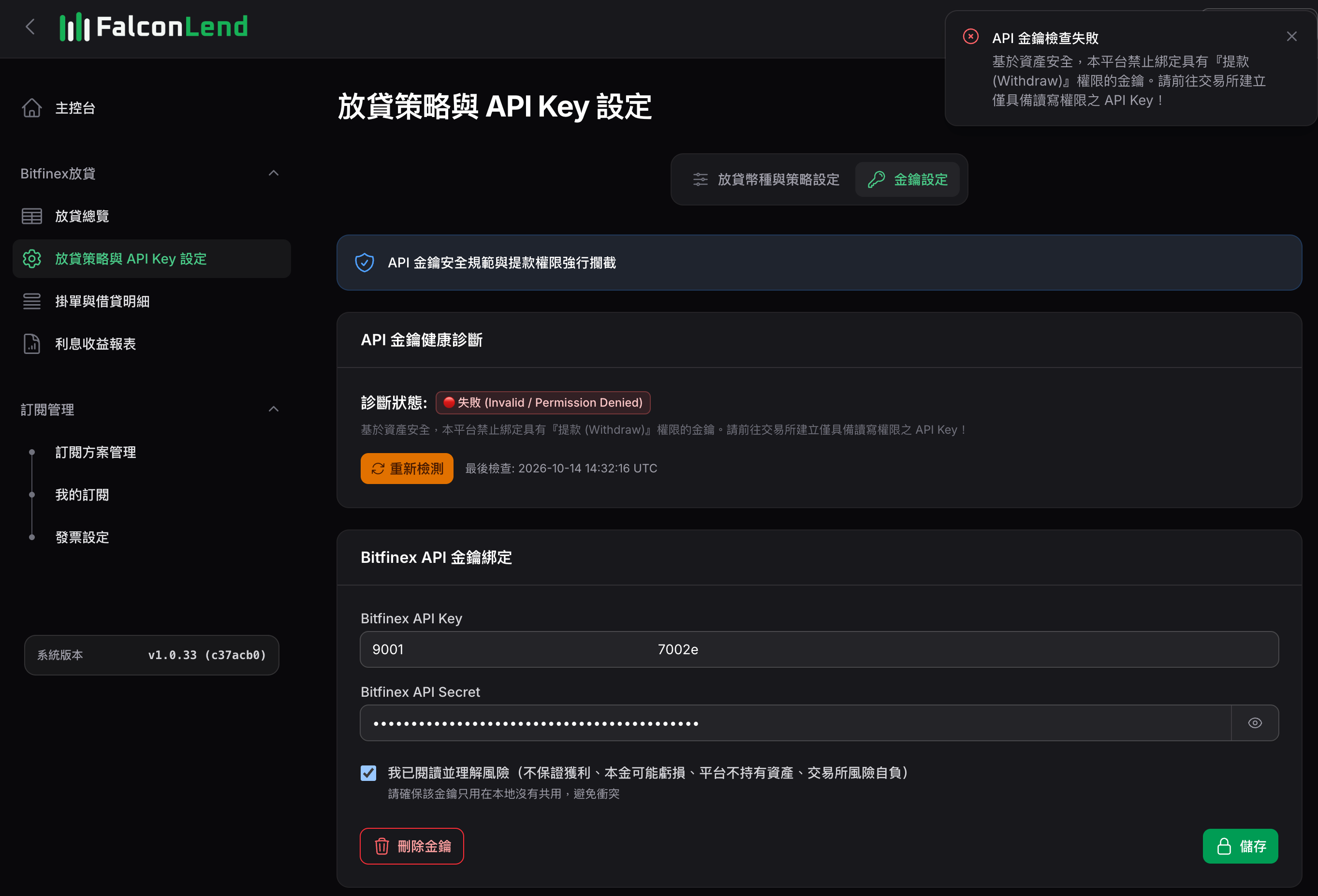
If the key has excessive permissions, the API key check fails (and the API Key Health Check status shows a failure). This check ensures the key has no permission to transfer or withdraw funds
4. Choose an Asset and Lending Strategy
- Go to Strategy & API Settings >
Strategy & Parameters. UseSelect Assetto choose the asset you want to use, then turn on theAutomated Lendingswitch next to it (green means enabled) - Under
Strategy Presets, pick a strategy (such asShort-Term Liquidity,High-Yield LockorCustom Strategy) - Finally, click
Save USDT Strategy Settingsat the bottom right (the button shows your selected asset) - To learn the differences between the strategies in detail
- See the article: The Three Built-in Strategies
Start Earning Interest
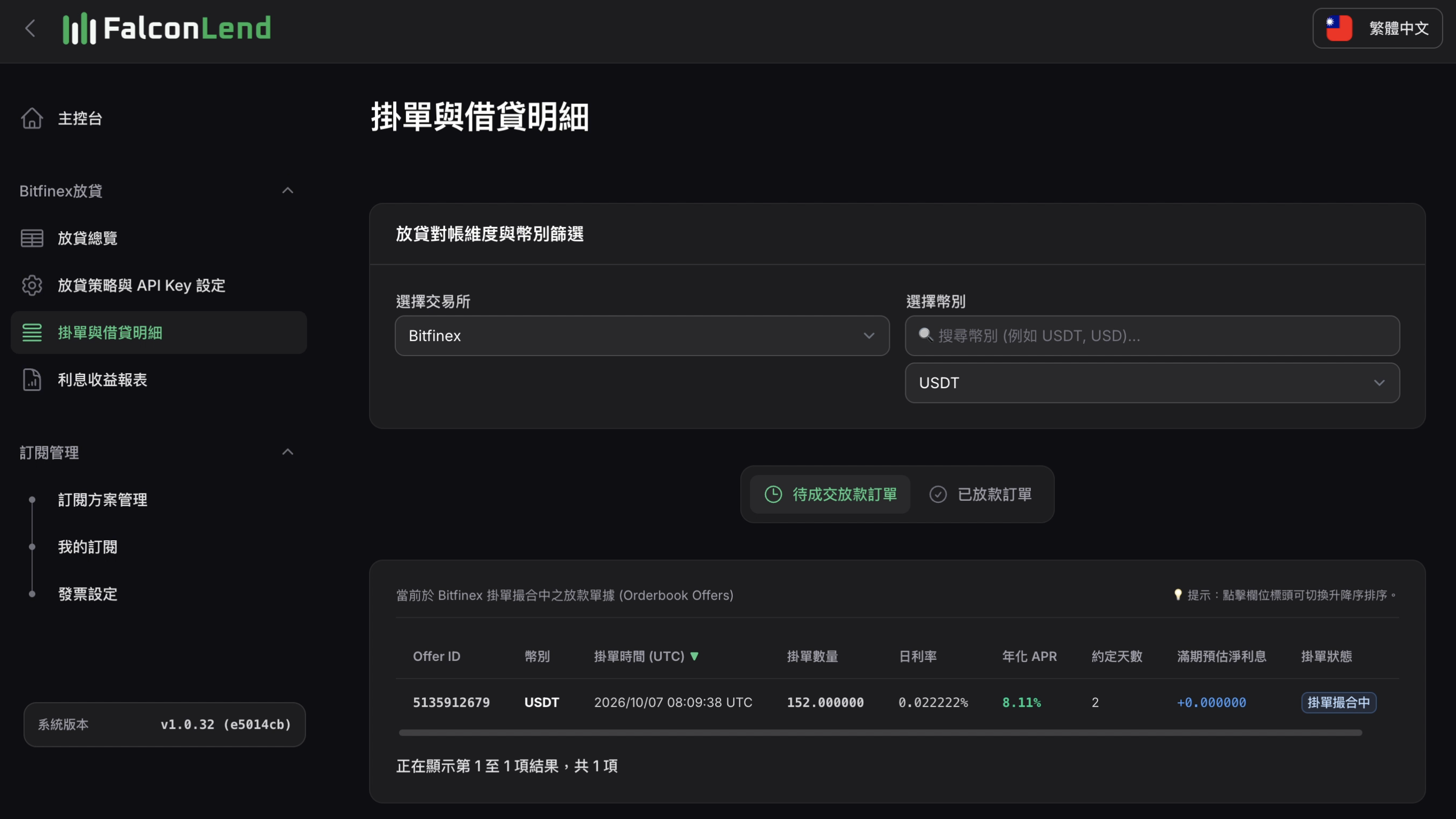
Once done, go to “Order Book & Loans > Open Offers” to see your strategy start placing offers
- To learn about lending performance
- See the article: Viewing Your Lending Performance
Related